Bookingfor is extremely flexible in price management, in fact it allows you to manage both simple and extremely complex price lists. Here are some practical examples useful for those who adopt a channel manager:
How do I reach this section?
From the main menu: Ads -> Resources-> Prices and availability tab
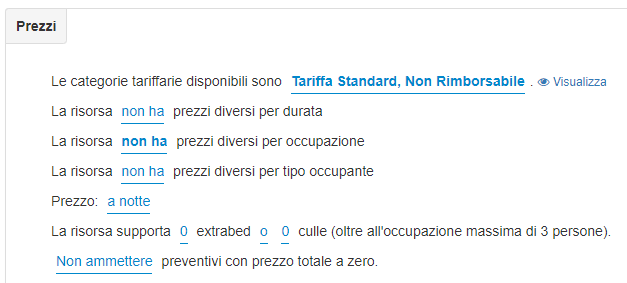
For each resource bookingfor allows a precise price configuration. First you will have to select which Tariff categories to manage the tariffs and prices of the resource.

- Prices per resource
This is the simplest solution, also adopted by large booking portals (OTA) to streamline the price entry process and give the possibility to be online quickly. All product types can use this approach to calculating prices without major difficulties.
This setting allows you to enter the price of the resource for a single night (or unit of time in the case of resources that can be booked by the hour or time slot), therefore independently of the number of people (occupancy).
Example 1: Double room costing € 60 per night
Example 2: Apartment costing € 90 per night.
Example 3: Tennis court costing € 20 per hour.
Often used by real estate agencies, this setting allows you to enter the price of the resource for the whole week (7 nights), therefore regardless of the number of people.
Example: Apartment costing € 650 per week.
Used for packages with a fixed cost, or by additional services such as insurance, this setting allows you to enter the price of the resource for the entire reservation (whether it is per night or per unit of time), therefore regardless of the number of people.
Example 1: Relaxation weekend package with a fixed cost of € 500.
Example 2: Travel insurance with a fixed cost of € 100.
- Prices per person
This is the most suitable solution for hotels or service providers; the cost is calculated based on the age of the guests.
Often used by hotels, this setting allows you to enter the price of full and reduced prices for the single night (or time unit in the case of resources that can be booked by the hour or time slot); the price therefore varies according to the composition of the group of guests. Example: Double room with a cost of € 90 per night for the full, € 50 for reduced up to 5 years and free up to 2 years.
Used by real estate agencies, this setting allows you to enter the price of full and reduced for the whole week (7 nights); the price therefore varies according to the composition of the group of guests.
Example: Apartment costing € 280 for full and € 200 for reduced per week.
Used for tours, or for services with a fixed time duration, this setting allows you to enter the price of full and reduced prices for the entire reservation (whether it is per night or per unit of time), therefore regardless of the number of people.
Example: Food and wine tour costing € 30 for full and € 15 for reduced.
- Prices per resource plus person
This is the most suitable solution for campsites; a price that varies according to the age of the guests is added to the basic cost of the resource.
Often used by campsites, this setting allows you to enter the price of the resource per night, and add the price of full and reduced prices per night (or unit of time in the case of resources that can be booked by the hour or time slots); a cost that varies according to the composition of the group of guests is then added to the fixed price of the resource.
Example: Pitch costing € 20 per night plus € 10 for full and € 7 for reduced up to 5 years.
Often used by campsites, this setting allows you to enter the price of the resource per week, and add the price of full and reduced prices per week (7 nights); a cost that varies according to the composition of the group of guests is then added to the fixed price of the resource.
Example: Maxi-Caravan with a basic cost of € 400 per week plus € 70 for full and € 30 for reduced up to 5 years always per week.
Used for fixed cost tours, this setting allows you to enter the fixed price of the resource, to which you can add the price of full and reduced (for the entire reservation); a cost is added to the fixed price of the resource which varies according to the composition of the group of guests.
Example 1: Food and wine tour with a basic cost of € 100 plus € 20 for full and € 15 for reduced.
To manage the rates you can proceed with the configuration of some default settings
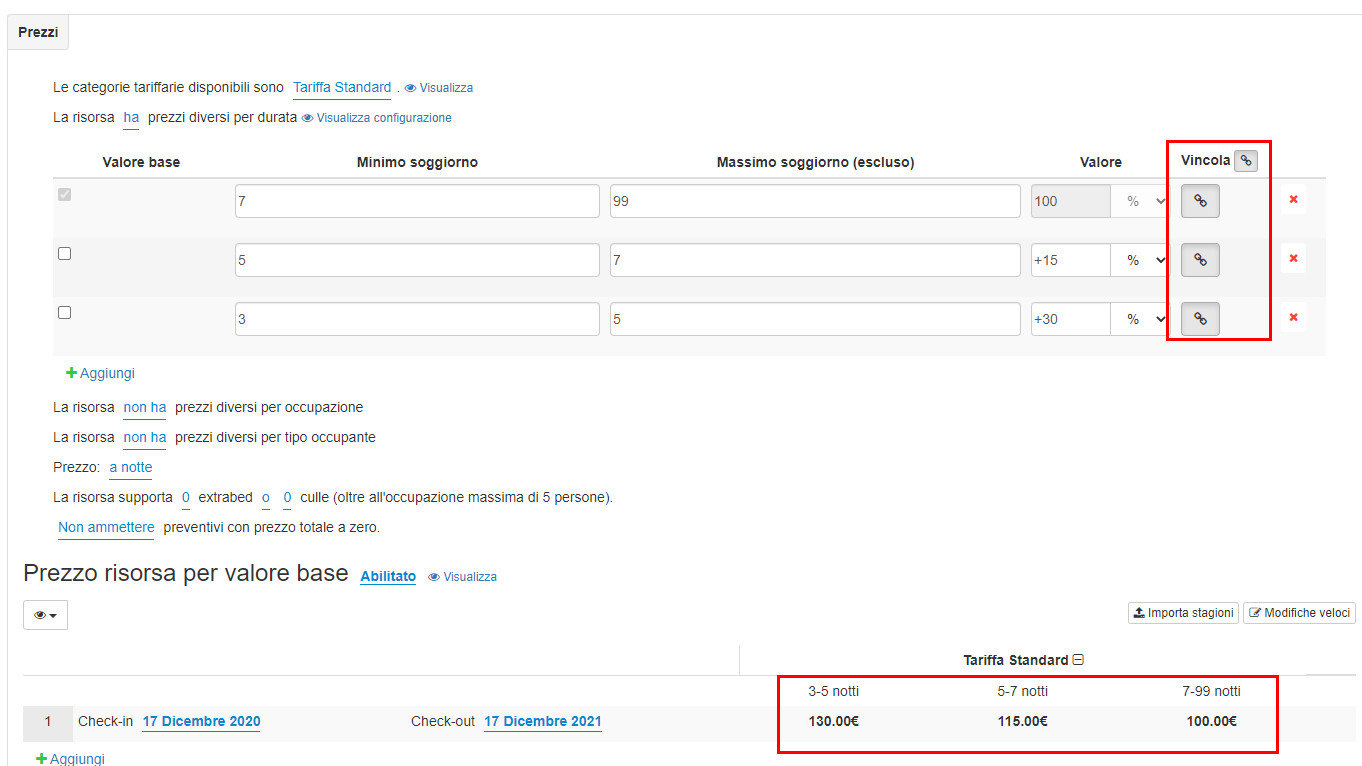
Rates depending on duration
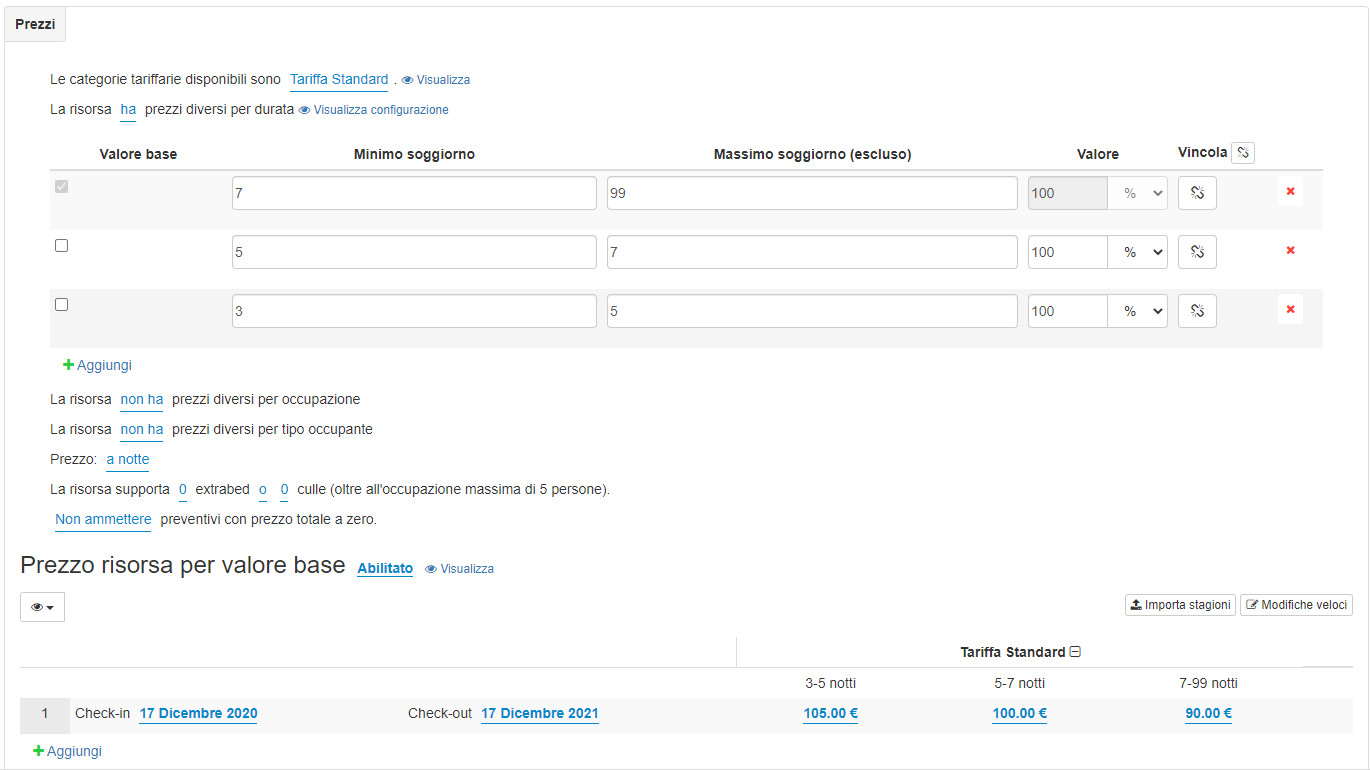
If you want to manually set or change the prices according to the duration, you must first activate the duration at the tariff level. Occupancy at the duration level allows you to manually set the standard rate differentiated by duration for resources offering different duration options. In this way you will have full control of the setting of both the standard rate and the prices differentiated by duration. In order to activate this function, it will be sufficient to indicate that the resource has different prices for duration.
Rates depending on occupancy
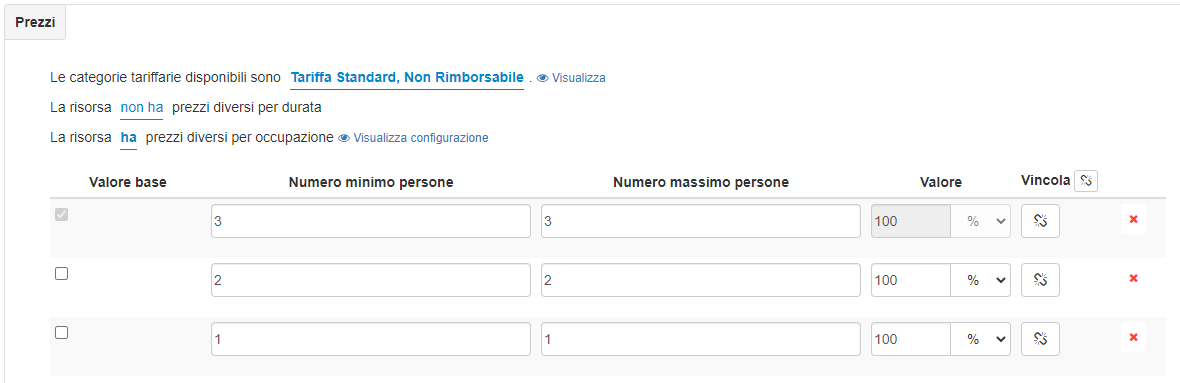
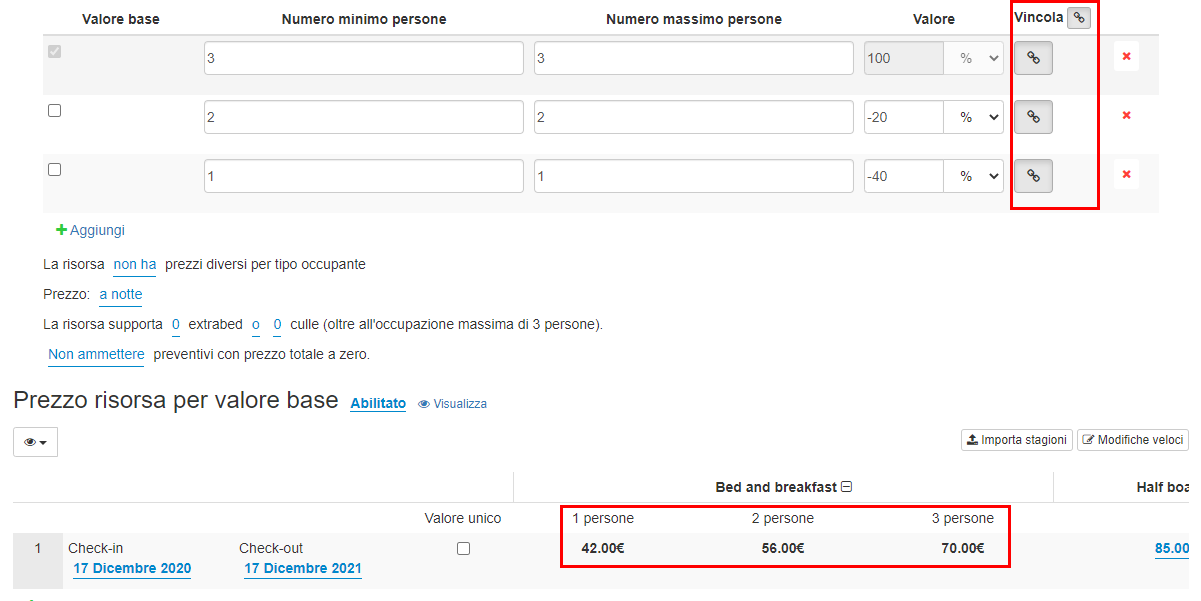
If you want to manually set or change the prices according to occupancy, you must first activate the occupancy at the rate level. Rate-level occupancy allows you to manually set the standard rate per occupancy for resources offering different occupancy options. In this way you will have full control of the setting of both the standard rate and the prices differentiated by capacity. In order to activate this function, it will be sufficient to indicate that the resource has different prices for occupancy.
Remember
In order to configure occupancy for children, you must set dedicated rates (Rates depending on the type of occupant or other configurations). Otherwise, children staying at your property will pay the same as adults
If you want your rates to change automatically based on resource occupancy, you can enable the captive rates feature. It will therefore be sufficient to value the base rate according to occupancy and the prices will be calculated automatically.
Rates depending on occupant type
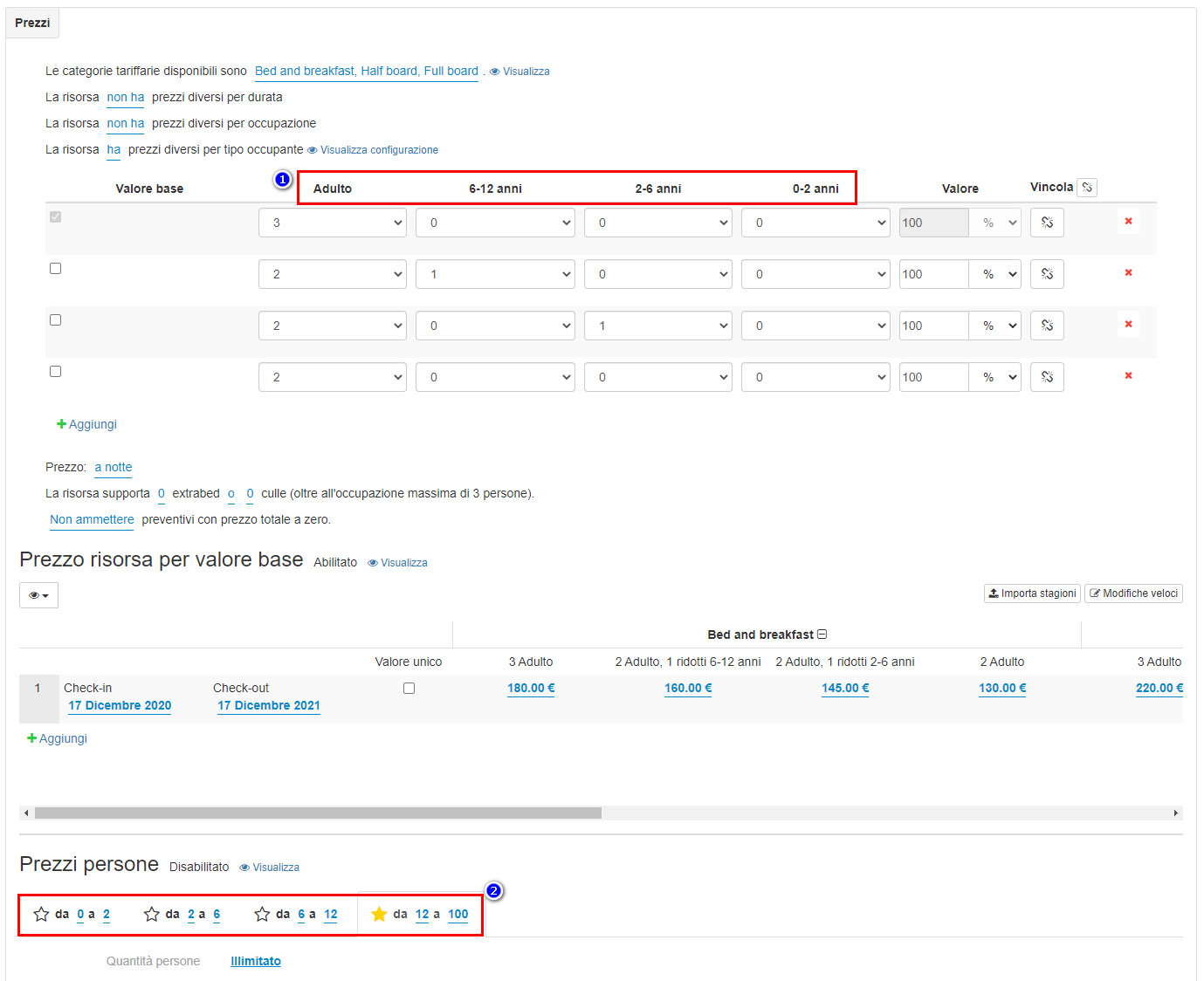
If you want to manually set or change the prices according to the occupant type, you must first activate the occupant type at the rate level. The rate level occupant type allows you to manually set the standard rate differentiated by occupant type for resources offering different occupancy options. In this way you will have full control of the setting of both the standard rate and the prices differentiated by capacity and type of occupant. In order to activate this function, it will be sufficient to indicate that the resource has different prices for each type of occupant.
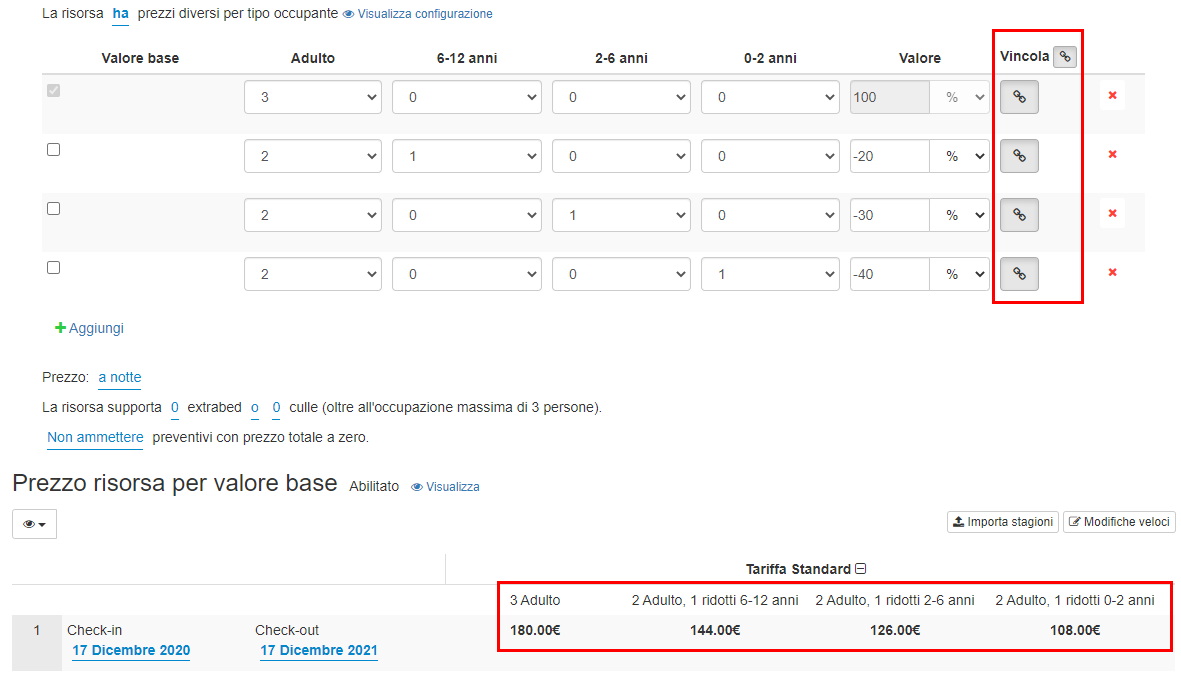
How do I configure the age groups?
The age groups must be set mainly at the merchant level Settings -> Merchant -> Price configuration tab and to view them (if you are in the resource area) click

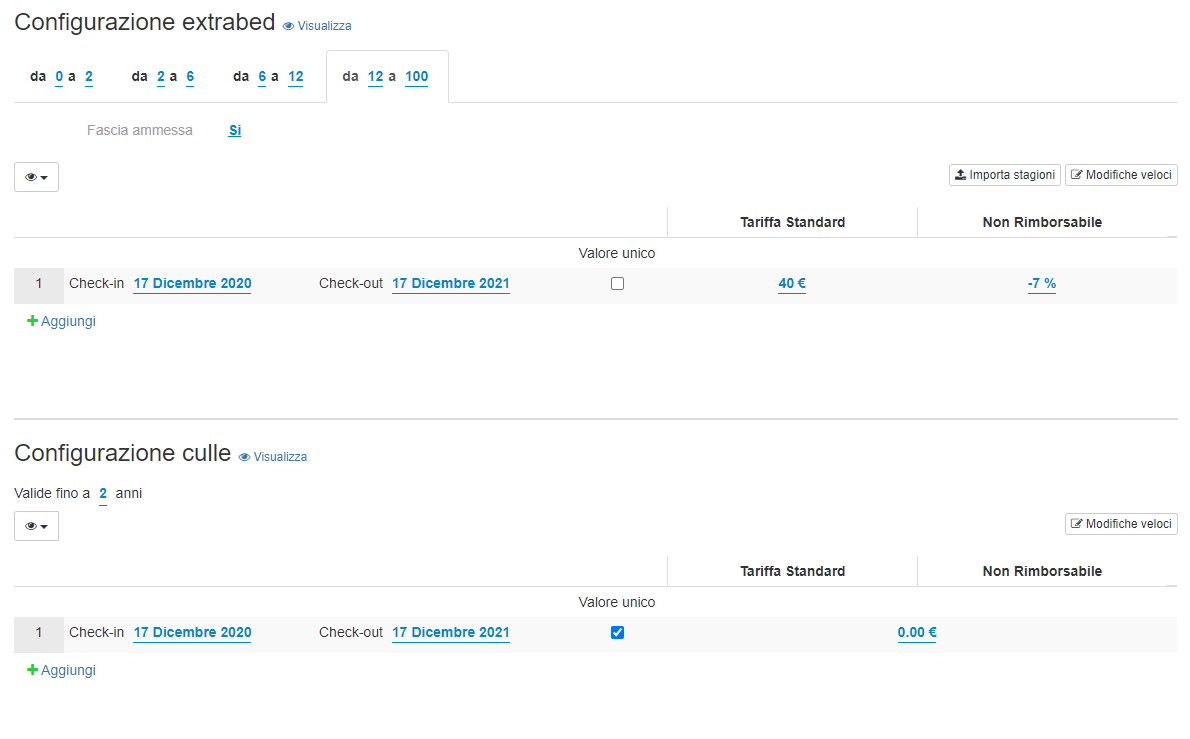
Rates for extra beds (extrabed) and cribs
Occupancy for adults and children is relative to existing beds (configured in resource settings), so you do not have to consider that for guests sleeping in cots or extra beds. Using cots or extra beds increases the maximum occupancy of the resource. (If a resource has an occupancy of 1 to 2 people and you add 1 extra bed and 1 cot, the resource appears in the search results for an occupancy of 4 people.) You can set rules for child prices based on the age. According to these rules, an extra cost is added to the resource’s default rate.
Remember Important!
If you want to manually set or change the prices depending on the type of extra bed and / or cot, first you need to activate the extra bed and / or cot by indicating the quantity.

This action will bring up the sections dedicated to extra beds and cots below. Select the number of adults and children that can be accommodated in extra beds or cots / cribs, any extra costs based on age group and the maximum age of children allowed to use an extra bed and a cot / crib.