Derivative person prices
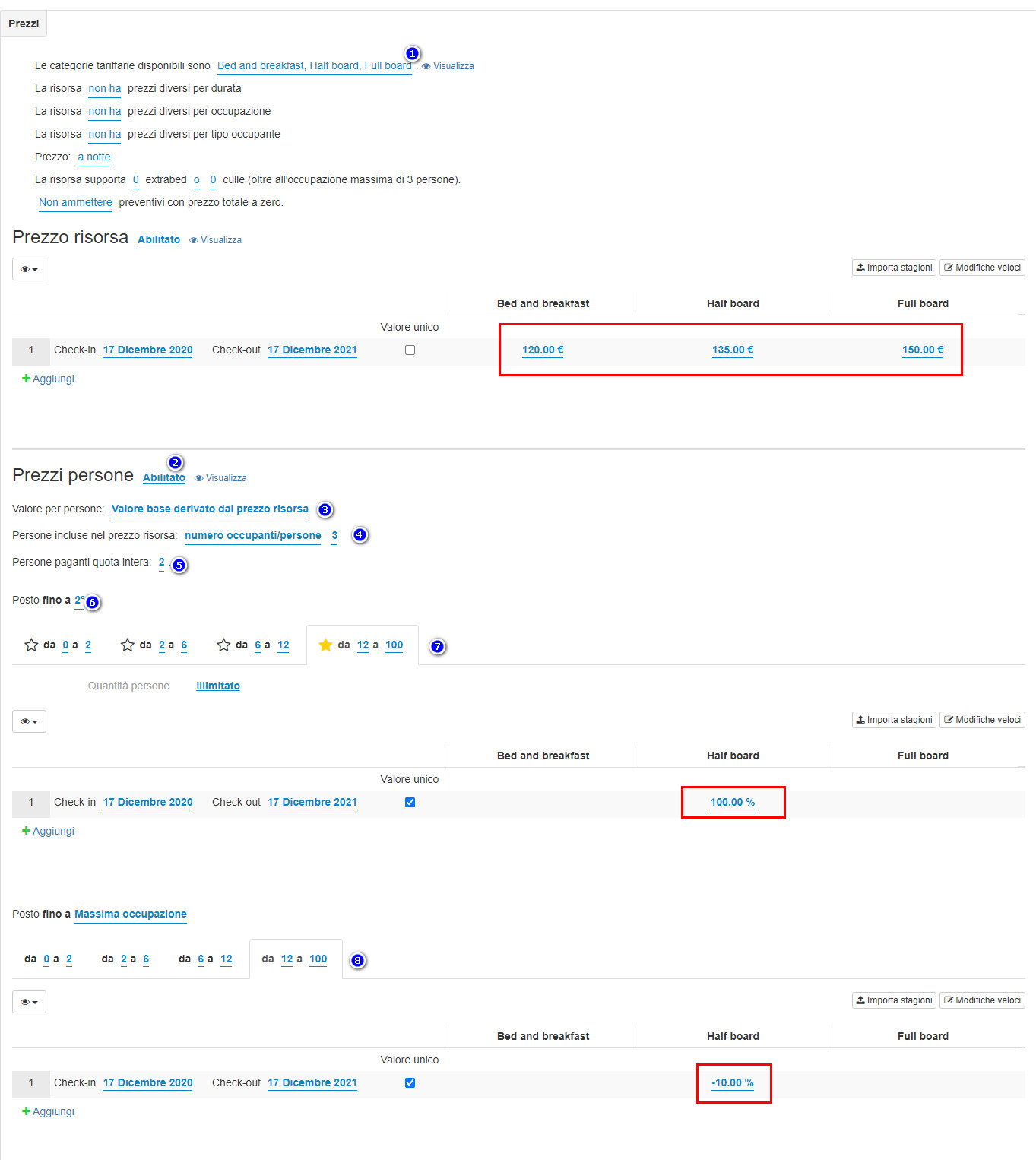
The price per derived person mode allows you to manage people and discounts even if only the resource price is received from the channel manager.
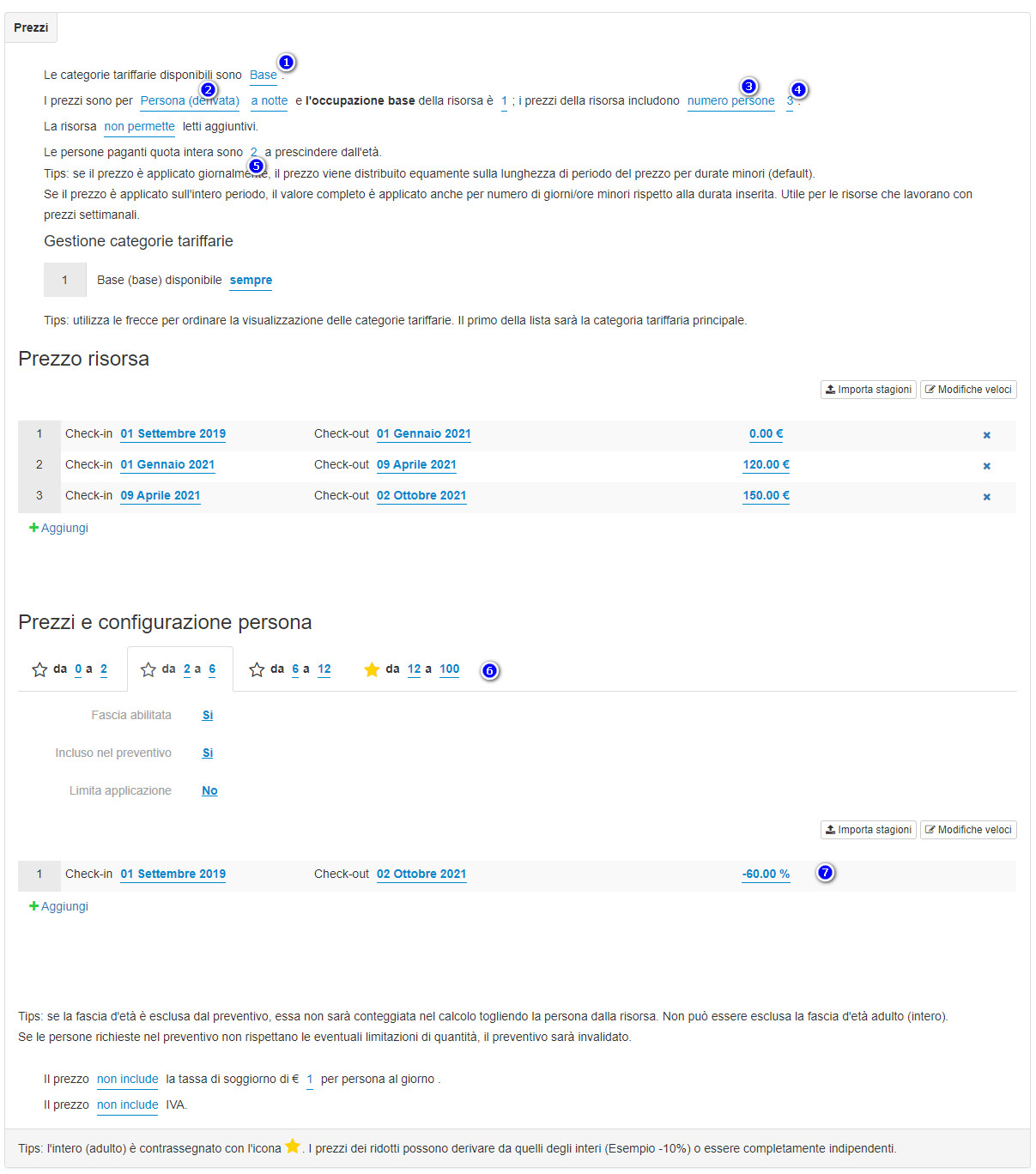
In order to correctly configure this calculation mode:
- 1) Indicate the tariff categories associated with the resource
- 2) Enable person prices if not activated
- 3) Set the Value for people field to “Base value derived from resource price”
- 4) Set the number of people included in the resource price received by the channel manager (maximum or minimum occupancy depending on the channel manager)
- 5) Set how many people will pay full price (derived from previous settings)
- 6) If the values of the people change according to the seat (ex: third bed), change the item Seat up to the desired seat number
- 7-8) Set the age ranges for each seat with their respective value per seat
In the example below, the resource costs € 120 in a B&B for 3 people
Single person cost => 120/3 = 40 €
Up to second place, each person costs as a whole (40 €)
In third place, the adult costs -10% compared to the full price (40 € -10% = 36 €)
Lower prices per person
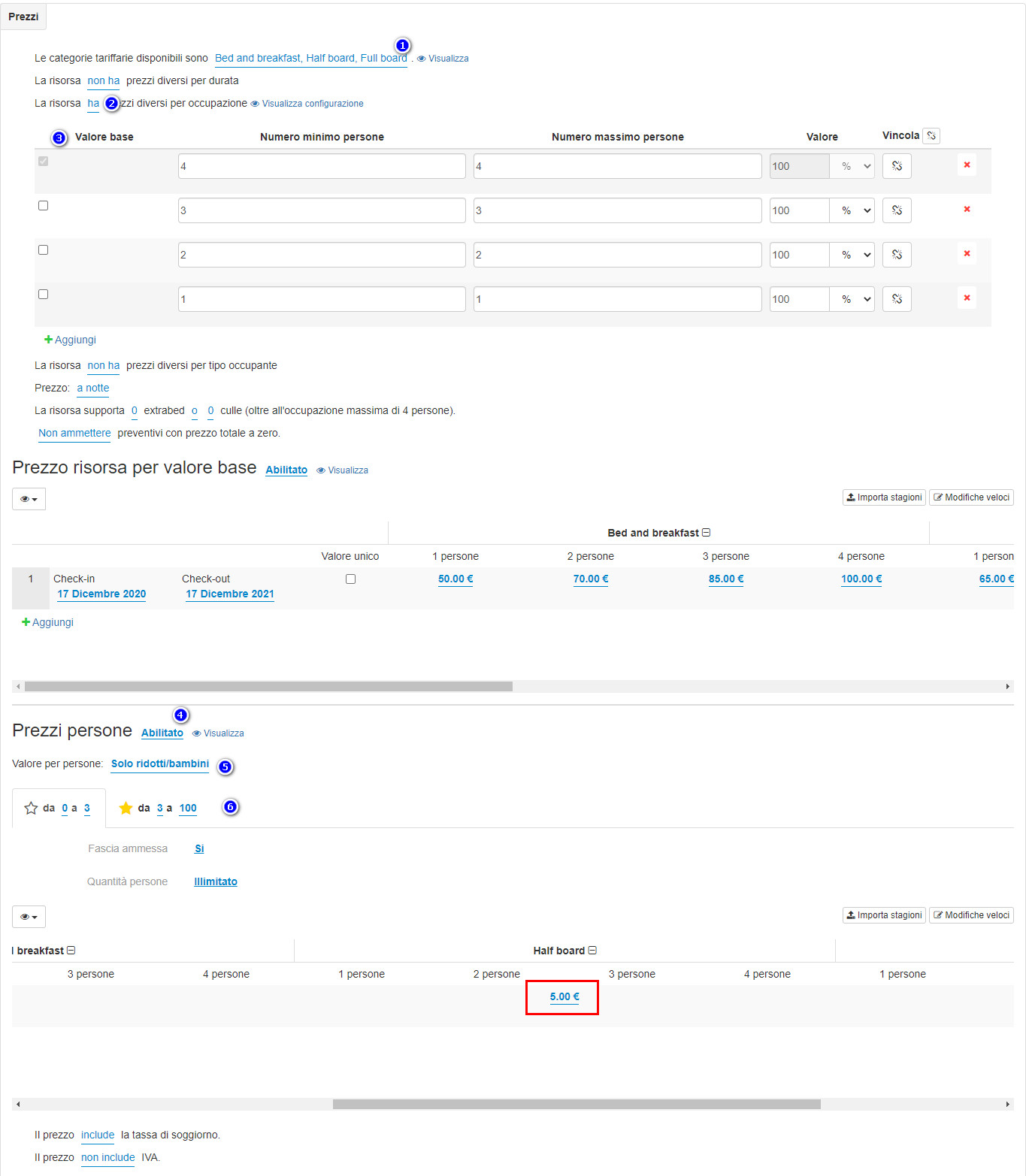
The reduced price per person mode allows you to use the price received from the channel manager as a valid price for adults (full), with the possibility of indicating an additional price for reduced prices. With this method of calculation, for a correct functioning it is necessary the support of the sending price per occupation by the Channel Manager
In order to correctly configure this calculation mode:
- 1) Indicate the tariff categories associated with the resource
- 2) Enable occupancy prices if not active
- 3) Set the total occupations valid for adults (ex: if the price for a single adult is not supported, delete the line)
- 4) Enable person prices
- 5) Set the Value for people field to “Only reduced / children”
- 6) Set the age ranges for each seat and enter the price for the reduced (a relative or percentage value is not supported)
Derivative person prices with positions
The price per derived person mode allows you to manage people and discounts even if only the resource price is received from the channel manager.
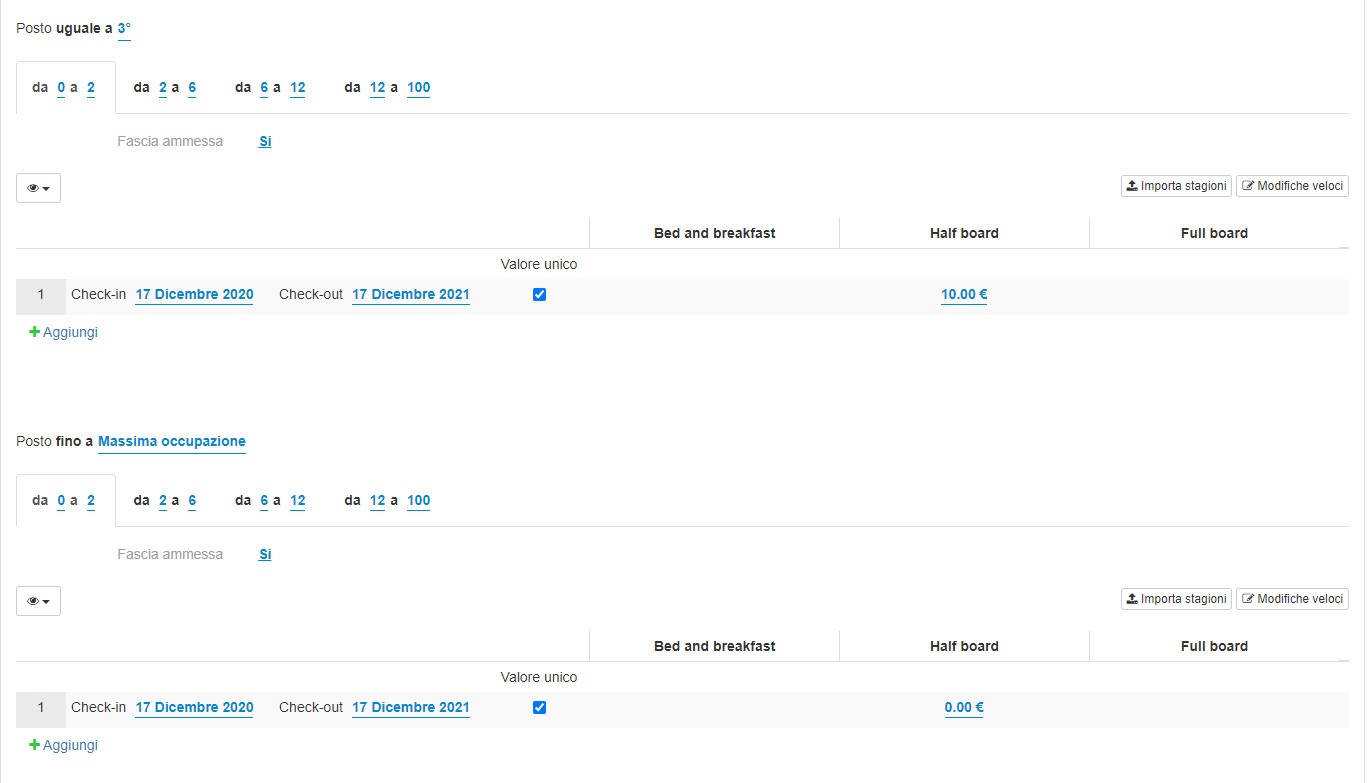
In addition, we want to give the possibility to specify different values depending on the place. In order to correctly configure this calculation mode:
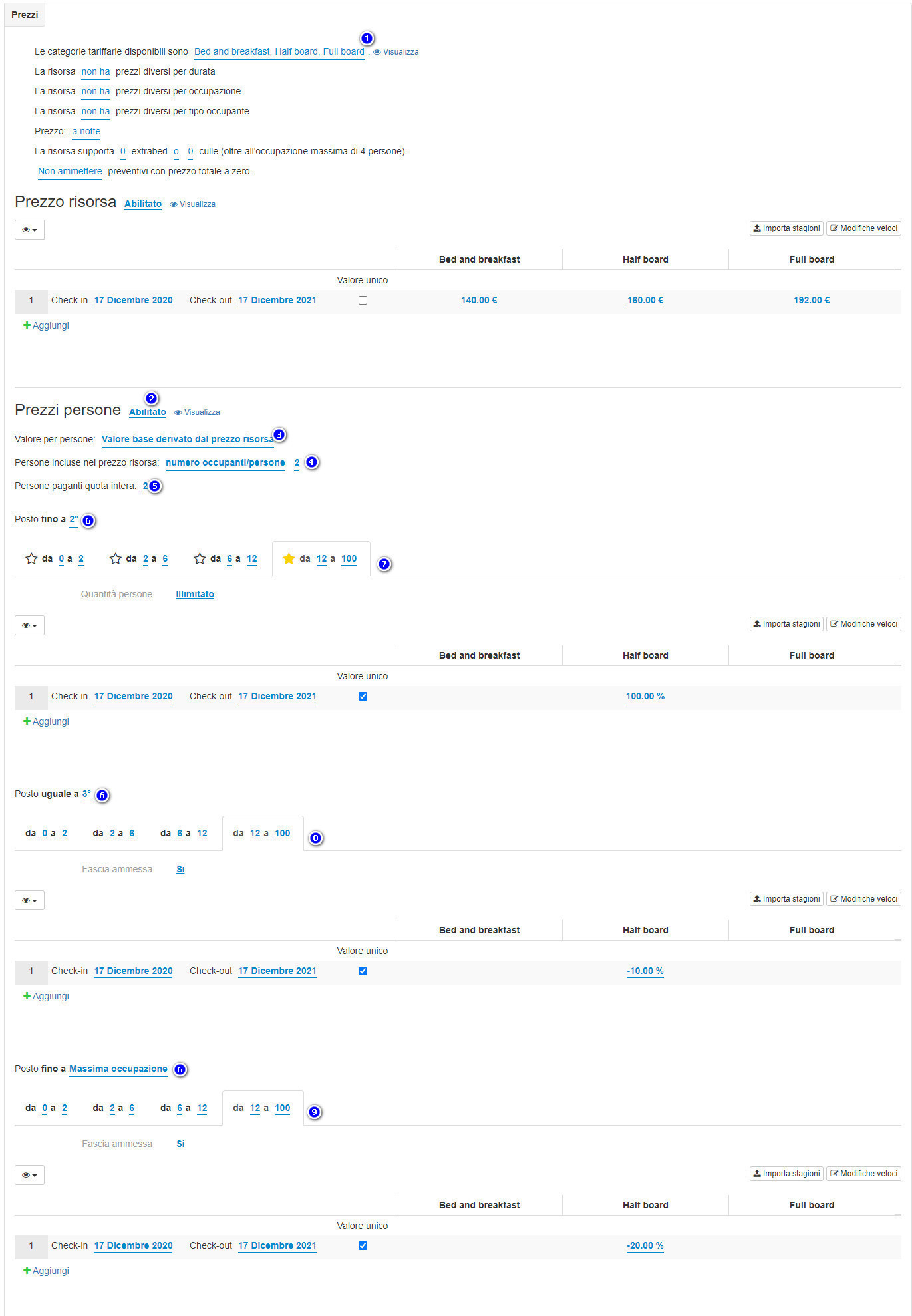
- 1) Indicate the tariff categories associated with the resource
- 2) Enable person prices if not active
- 3) Set the Value for people field to “Base value derived from resource price”
- 4) Set the number of people included in the resource price received by the channel manager (maximum or minimum occupancy depending on the channel manager)
- 5) Set how many people will pay full price (derived from previous settings)
- 6) If the values of the people change according to the seat (ex: third / fourth bed), change the item Seat up to the desired seat number
- 7-8-9) Set the age ranges for each seat with their respective value per seat
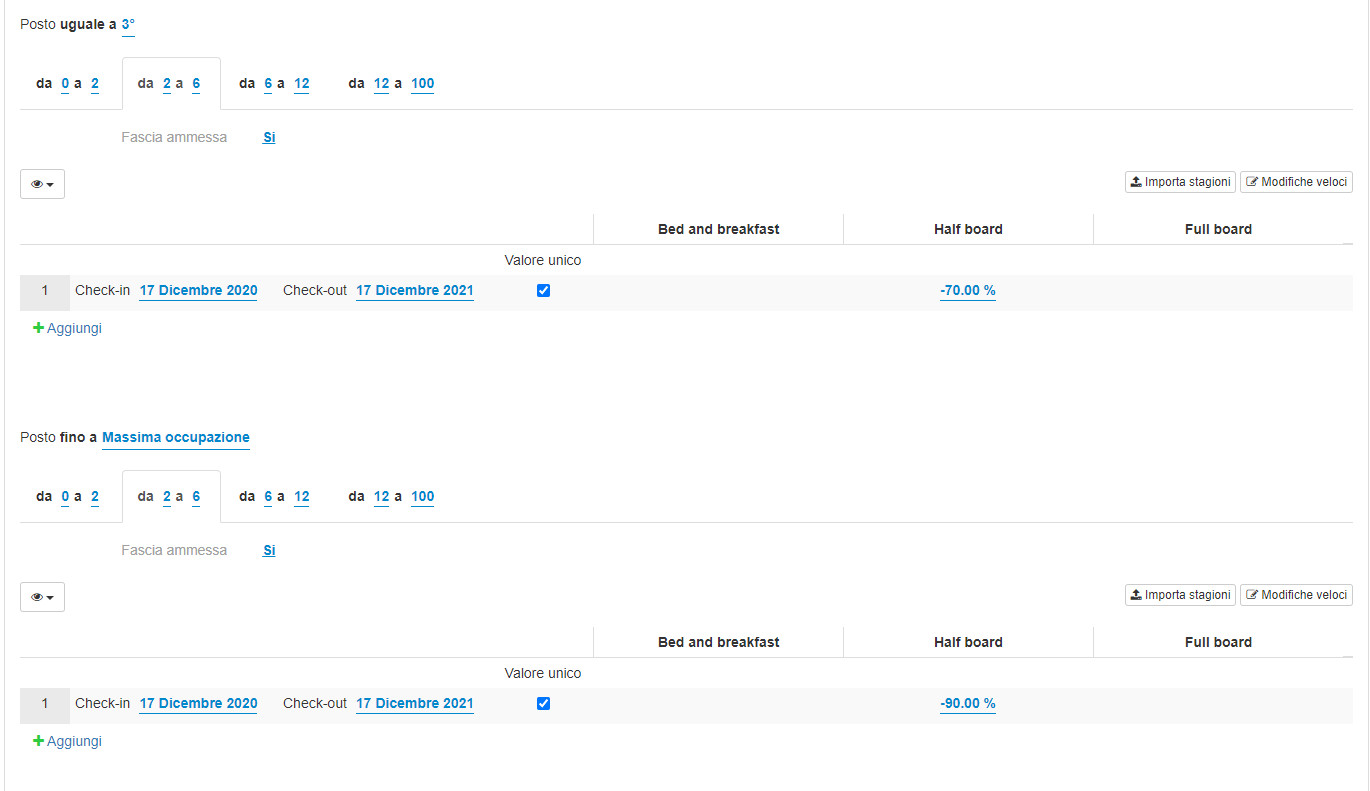
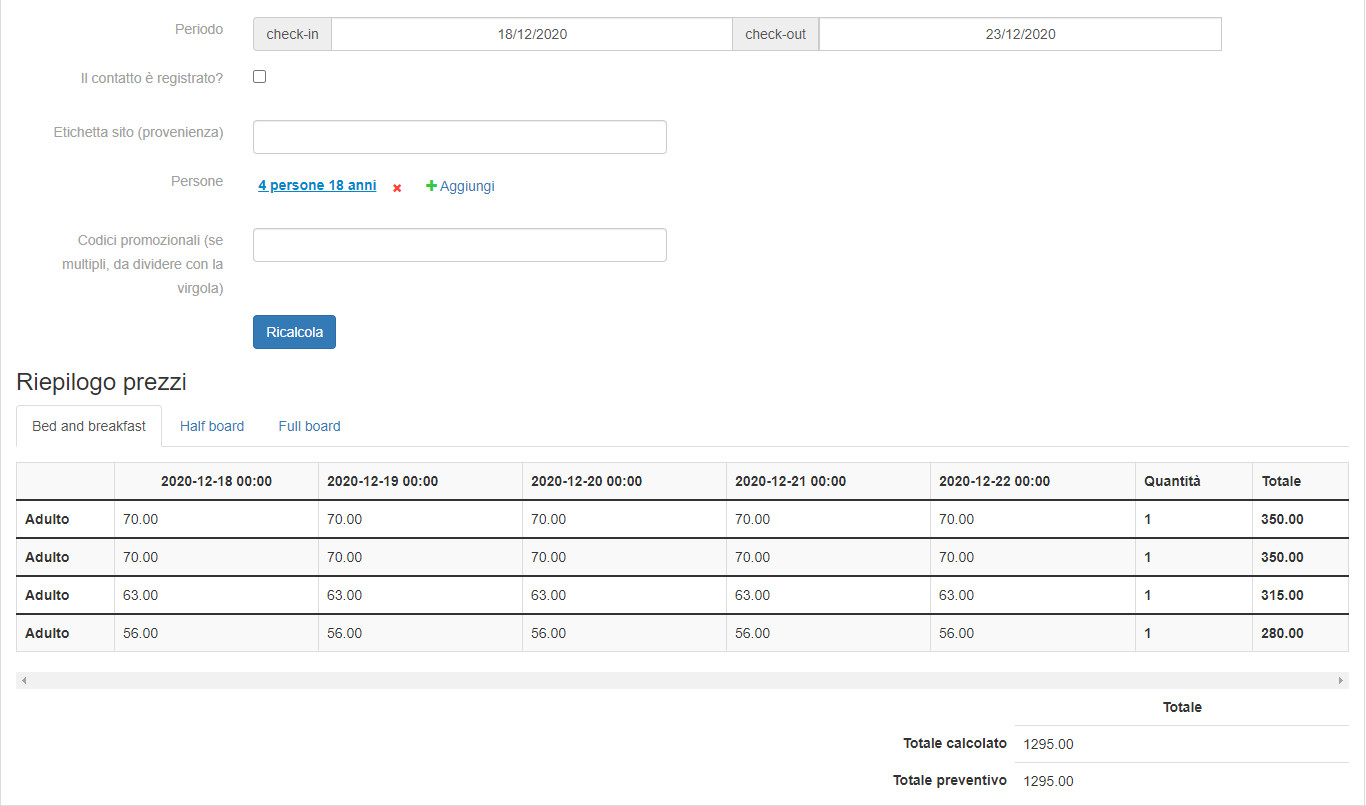
In the example below, the resource costs € 140 in a B&B for 2 people
Single person cost => 140/2 = 70 €
Up to second place, each person costs as a whole (70 €)
In third place, the adult costs -10% compared to the full price (70 € -10% = 63 €)
In fourth place, the adult costs -20% compared to the full price (70 € -20% = 56 €)
Prices per occupant type
The price mode by occupant type allows you to indicate a single price for the resource for a certain configuration of people (eg: 2 adults + 1 child 5 years), with the possibility of receiving the price from the channel manager. With this calculation mode, only the resource price can be used
In order to correctly configure this calculation mode:
- 1) Indicate the tariff categories associated with the resource
- 2) Open the people section by clicking on “View”
- 3) Set the age ranges set for the resource
- 4) Enable prices by occupant type if not active
- 5) Set the various configurations supported by the resource
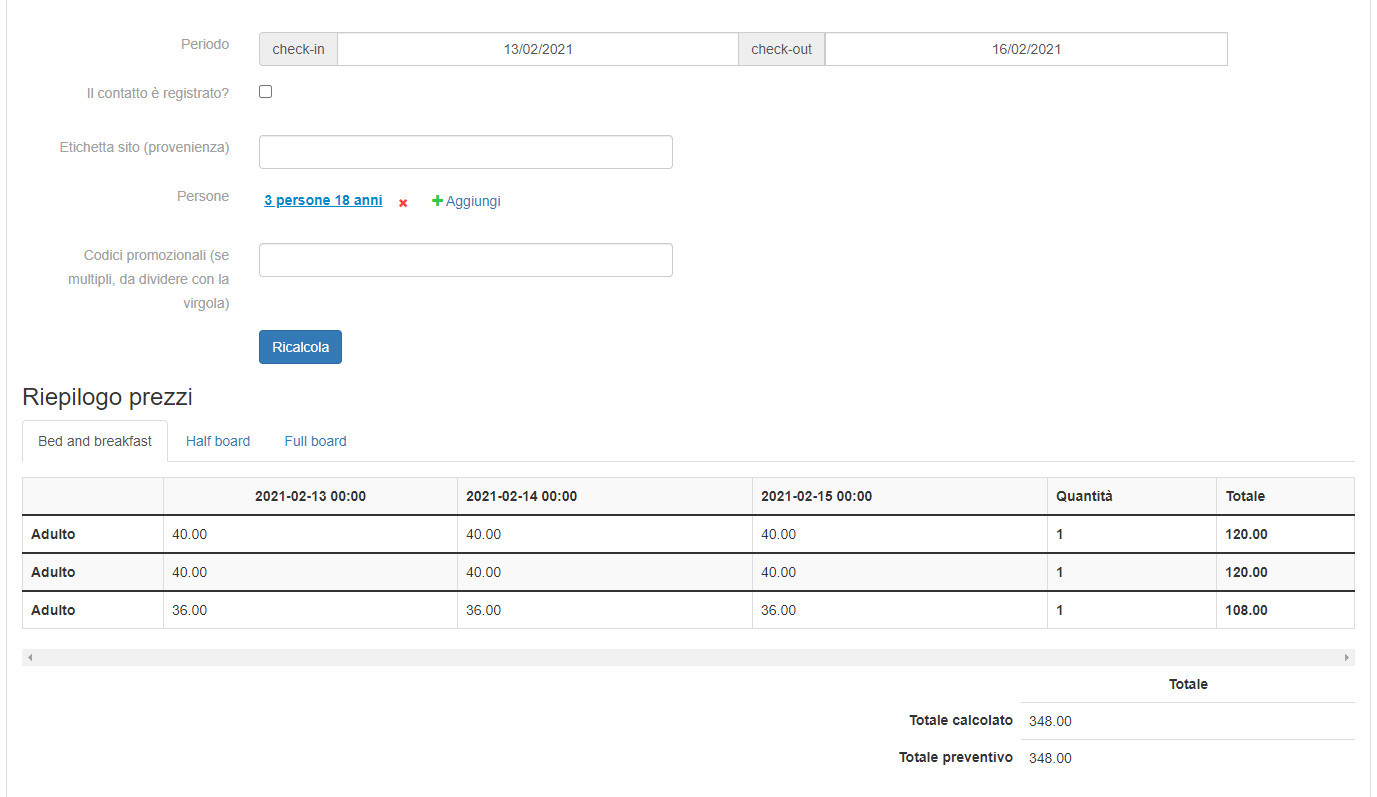
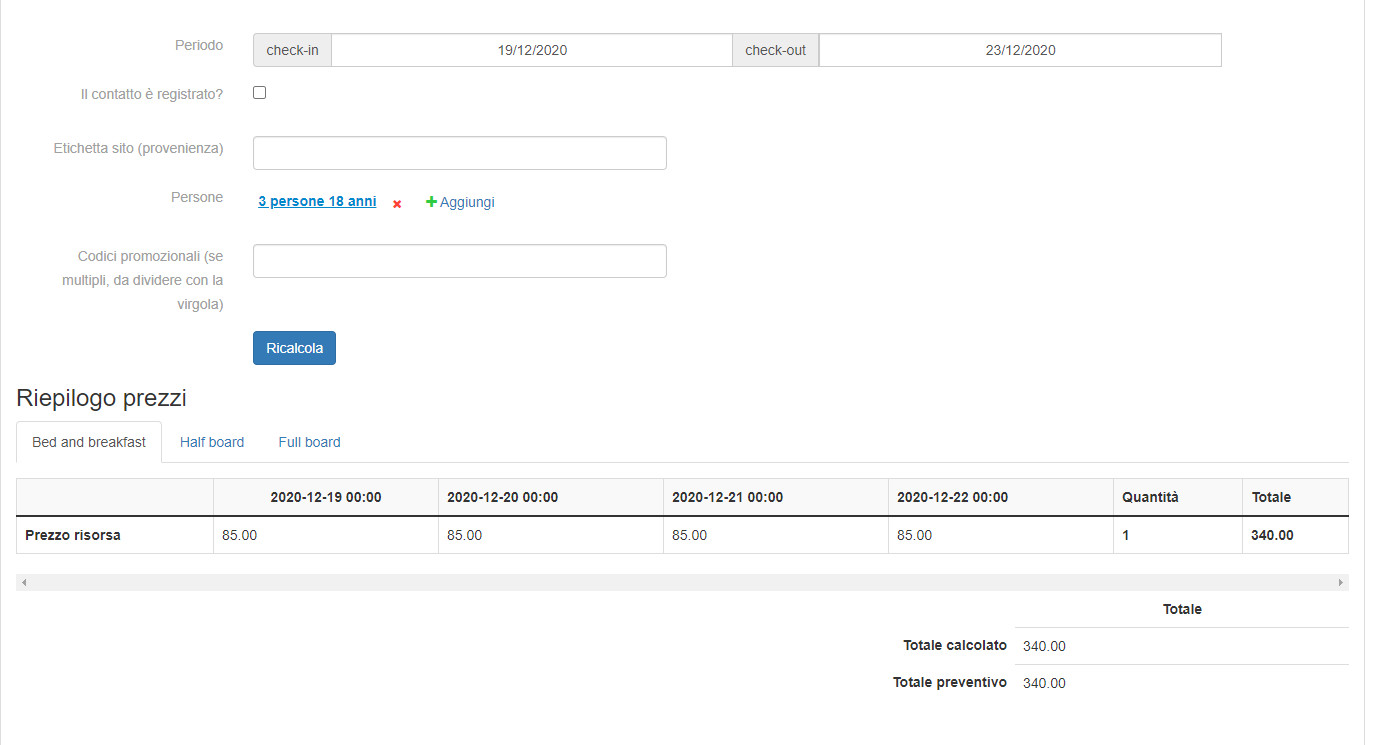
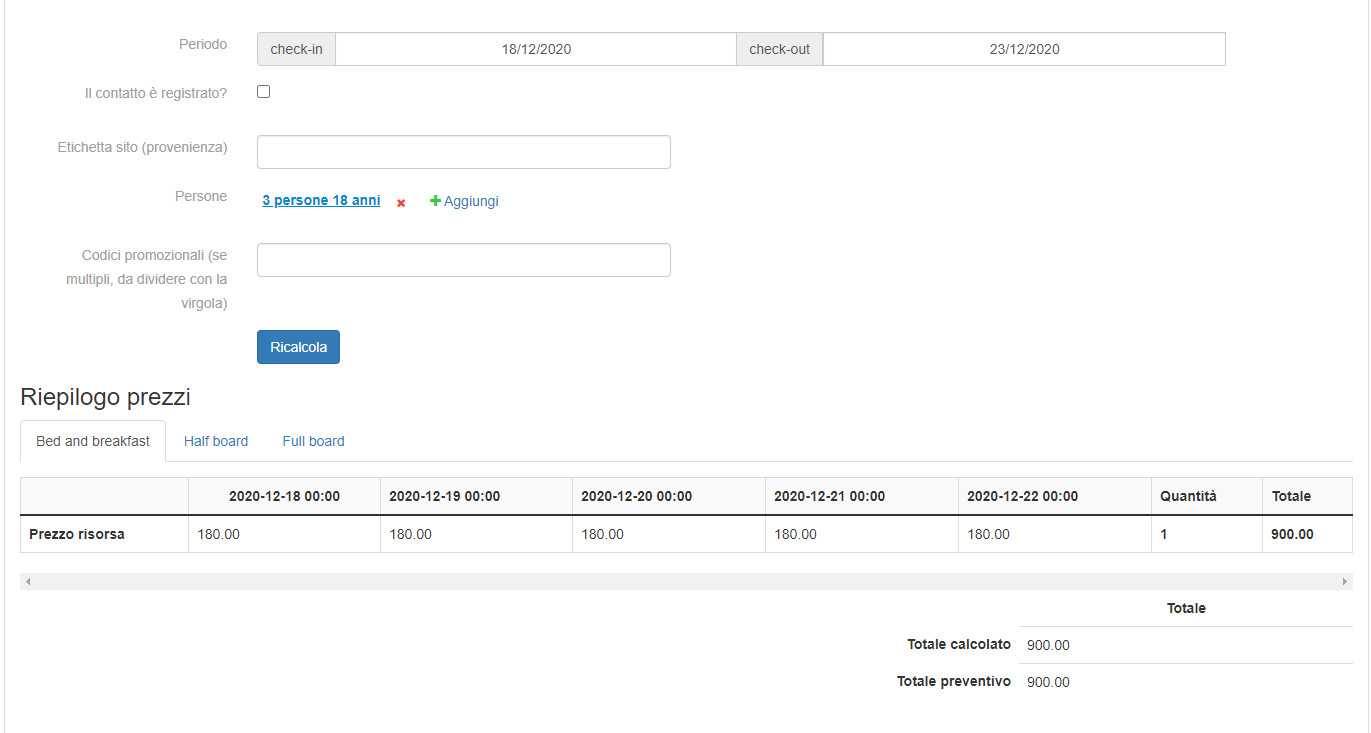
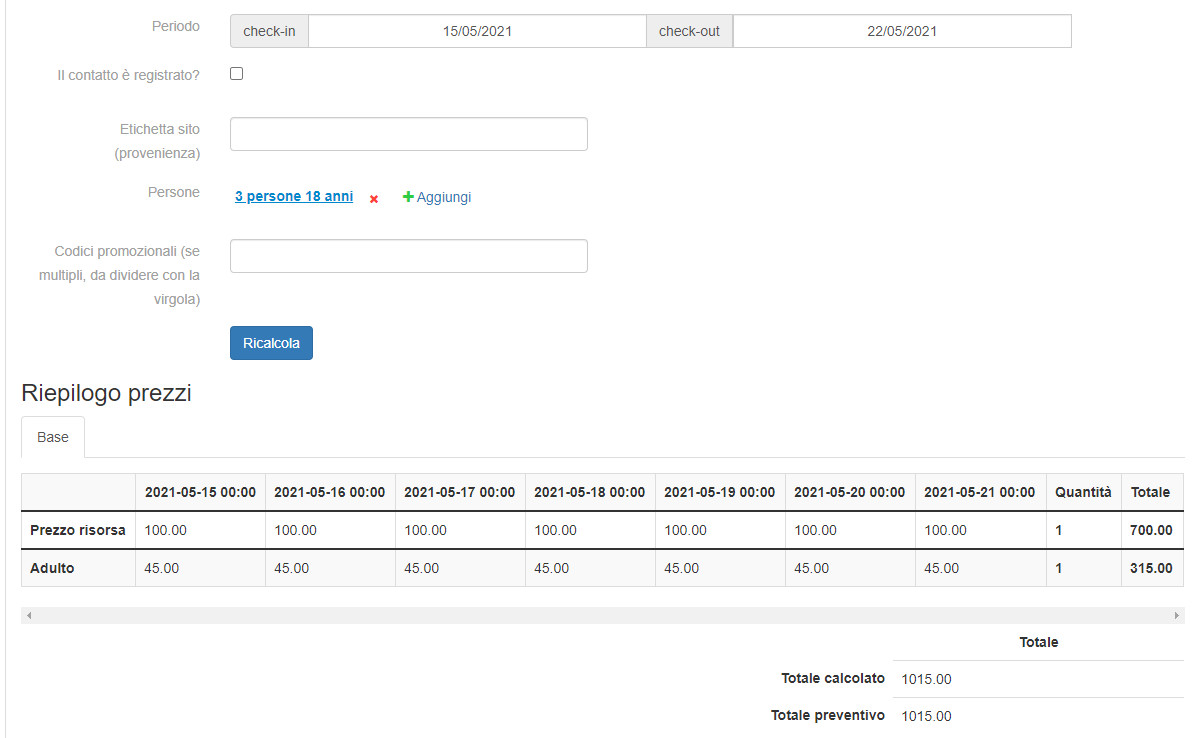
Verify 3 people 18 years:
Derivative person prices with positions
The price per derived person mode allows you to manage people and reduced prices even if only the resource price is received from the channel manager.
In addition, we want to give the possibility to specify different values depending on the place. In order to correctly configure this calculation mode:
- 1) Indicate the tariff categories associated with the resource
- 2) Enable person prices if not active
- 3) Set the Value for people field to “Base value derived from resource price”
- 4) Set the number of people included in the resource price received by the channel manager (maximum or minimum occupancy depending on the channel manager)
- 5) Set how many people will pay full price (derived from previous settings)
- 6) If the values of the people change according to the seat (e.g. third / fourth bed), change the Seat item up to the desired seat number
- 7-8-9) Set the age ranges for each seat with their respective value per seat
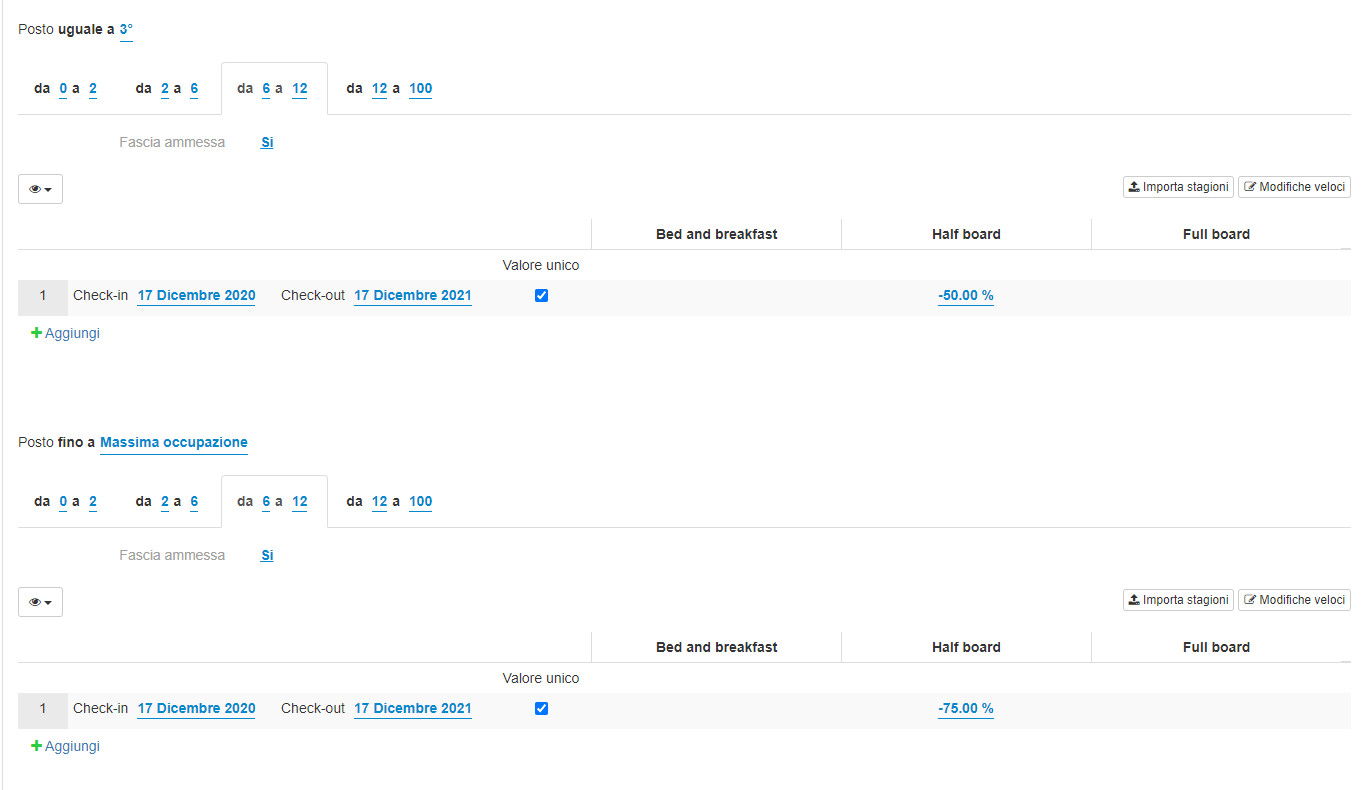
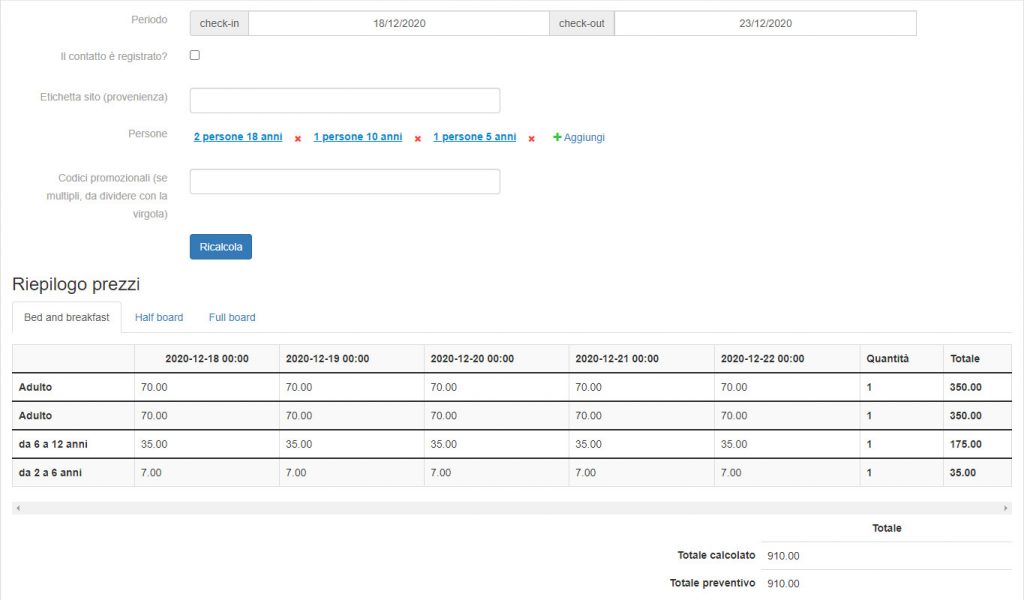
In the example below, the resource has a value of € 150 for 3 people from 09/04/2021 to 02/10/2021
Single person cost => 150/3 = 50 €
Up to second place, each person costs as a whole (50×2 = 100 €)
In third place, the adult costs -10% compared to the full price (50 € -10% = 45 €)
In third place, the reduced 2-6 costs -60% compared to the full price (50 € -60% = 20 €)
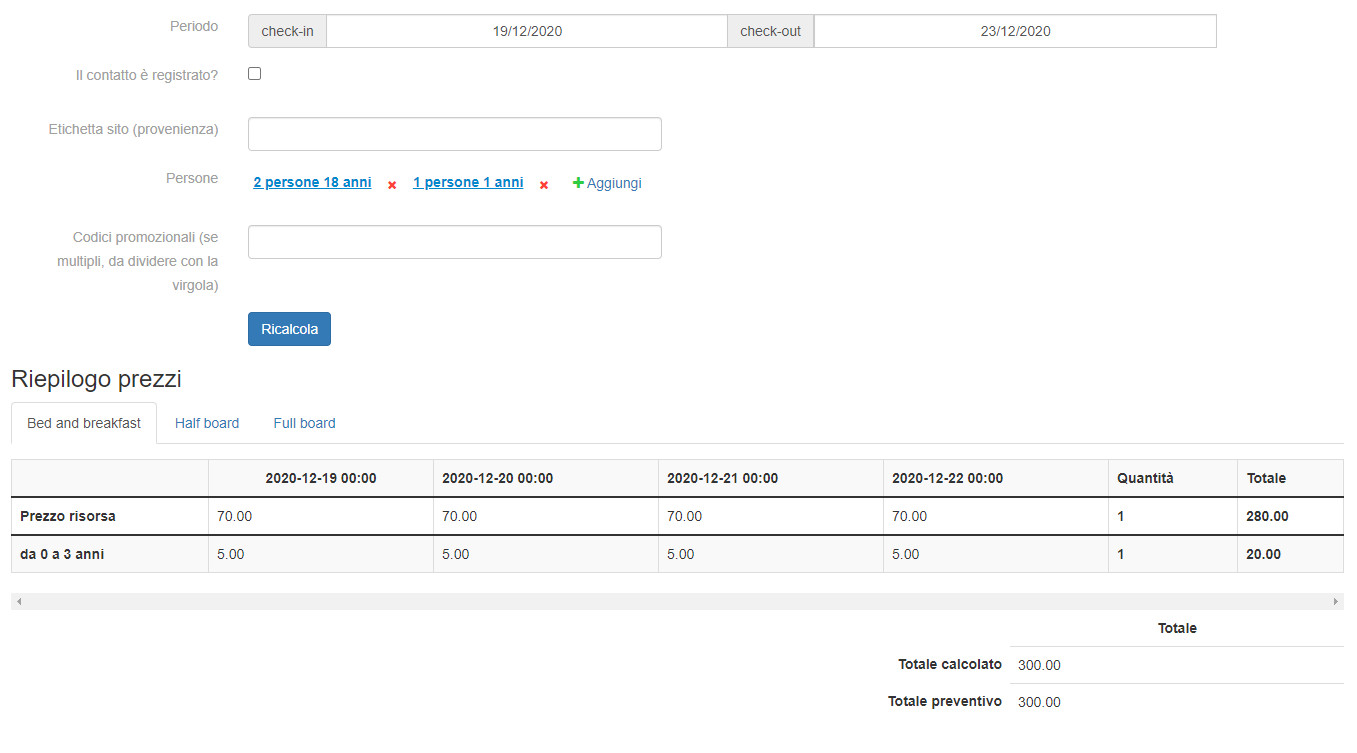
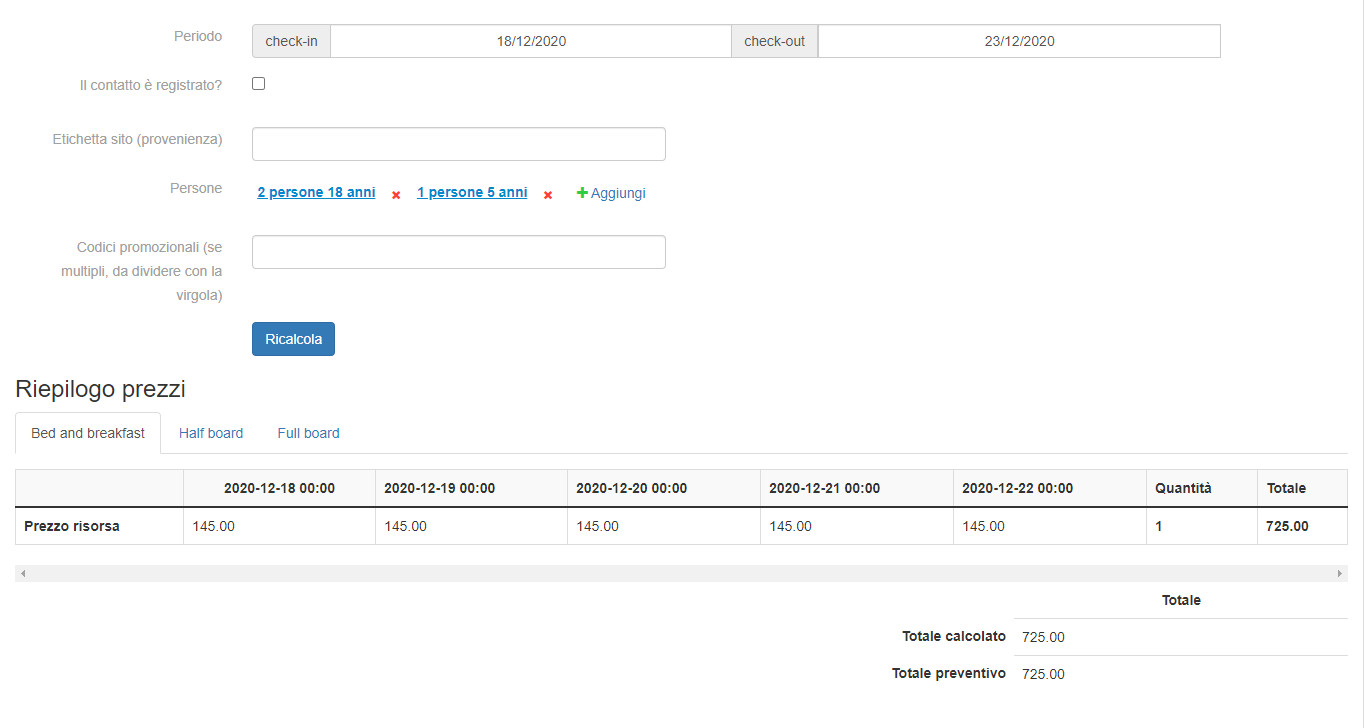
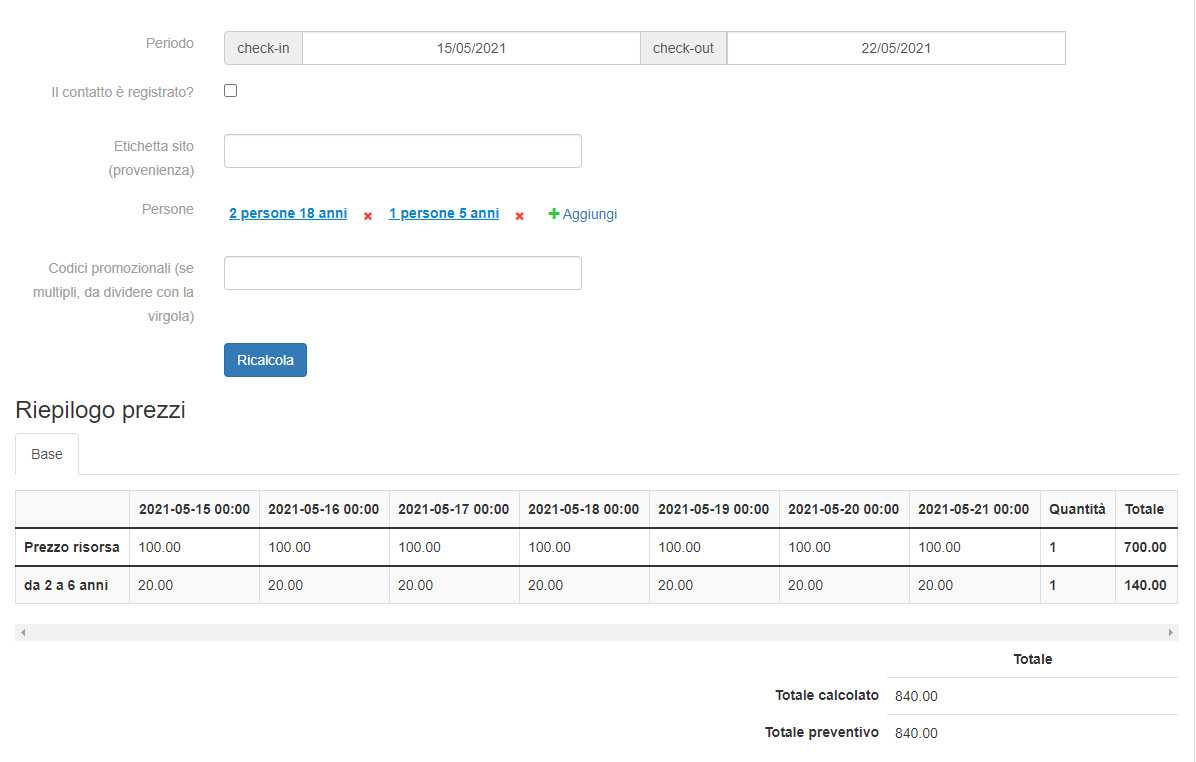
Verification for 2 adults + 1 child 5 years:
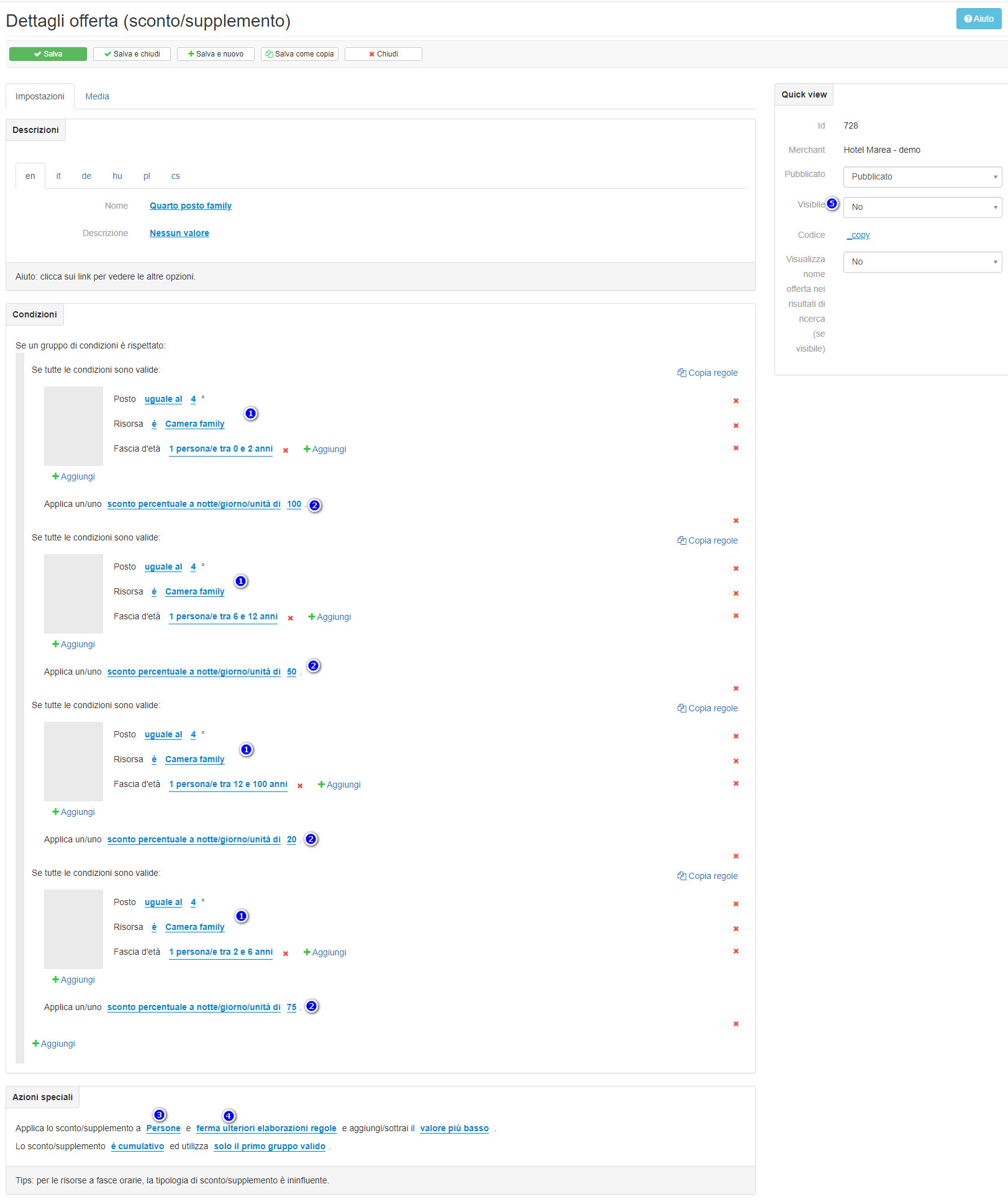
The same configuration can also be used for rooms for 4 people or more. If, on the other hand, your price list includes different values for third and fourth place on families (eg: -10% third adult and -20% fourth adult), you will need to use the offers.Compared to the previous configuration, it will be necessary to set the whole payer number to 0 (point 5) and set 100% as a value for all age groups (point 7).
Then create the offers as follows:
In the example, the room used will be called “Family room”
- 1-2) Create rule blocks with seat = 3, resource = “Family room”, age range and discount value
- 3) Apply the discount only to “People”
- 4) Set the rule check to “continue further rule processing”
- 5) Set the visible item to “No”: this is very important because by default it is set to yes and, if it remains active, the online price will be shown crossed out as a true discount
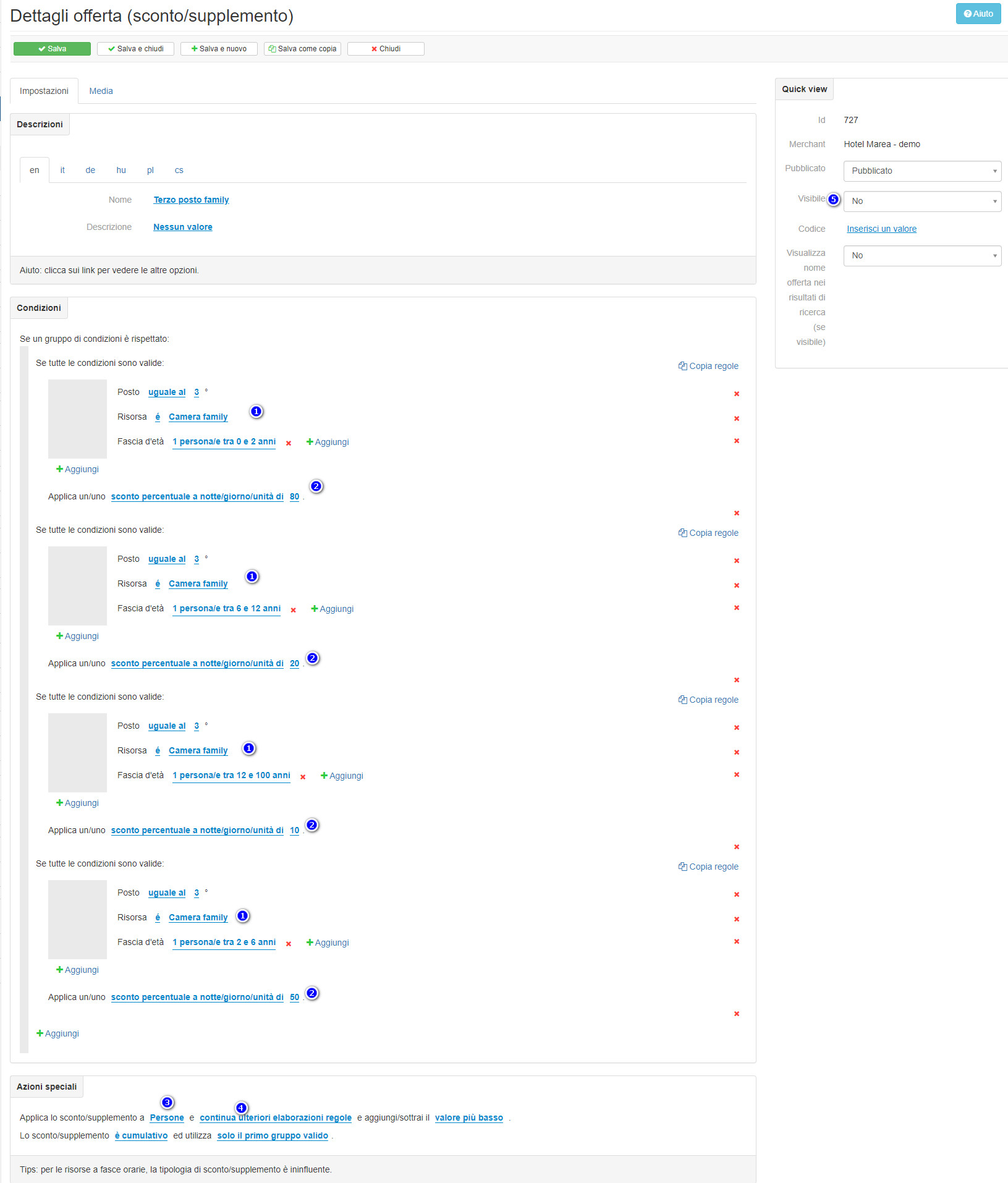
In the example, the room used will be called “Family room”
- 1-2) Create blocks of rules with seat = 4, resource = “Family room”, age range and discount value
- 3) Apply the discount only to “People”
- 4) Set the rule check to “continue further rule processing”
- 5) Set the visible item to “No”: this is very important because by default it is set to yes and, if it remains active, the online price will be shown crossed out as a true discount