With the term MERCHANT means the accommodation facility or the operator who offers bookable accommodation or services, such as a hotel, a camping site, a real estate agency or a bed & amp; breakfast, an agency that organizes excursions, events or tours.
3-impersonating the merchant by managing it directly from the merchant list
Follow the video guide and find out how to create and configure your first merchant step by step.
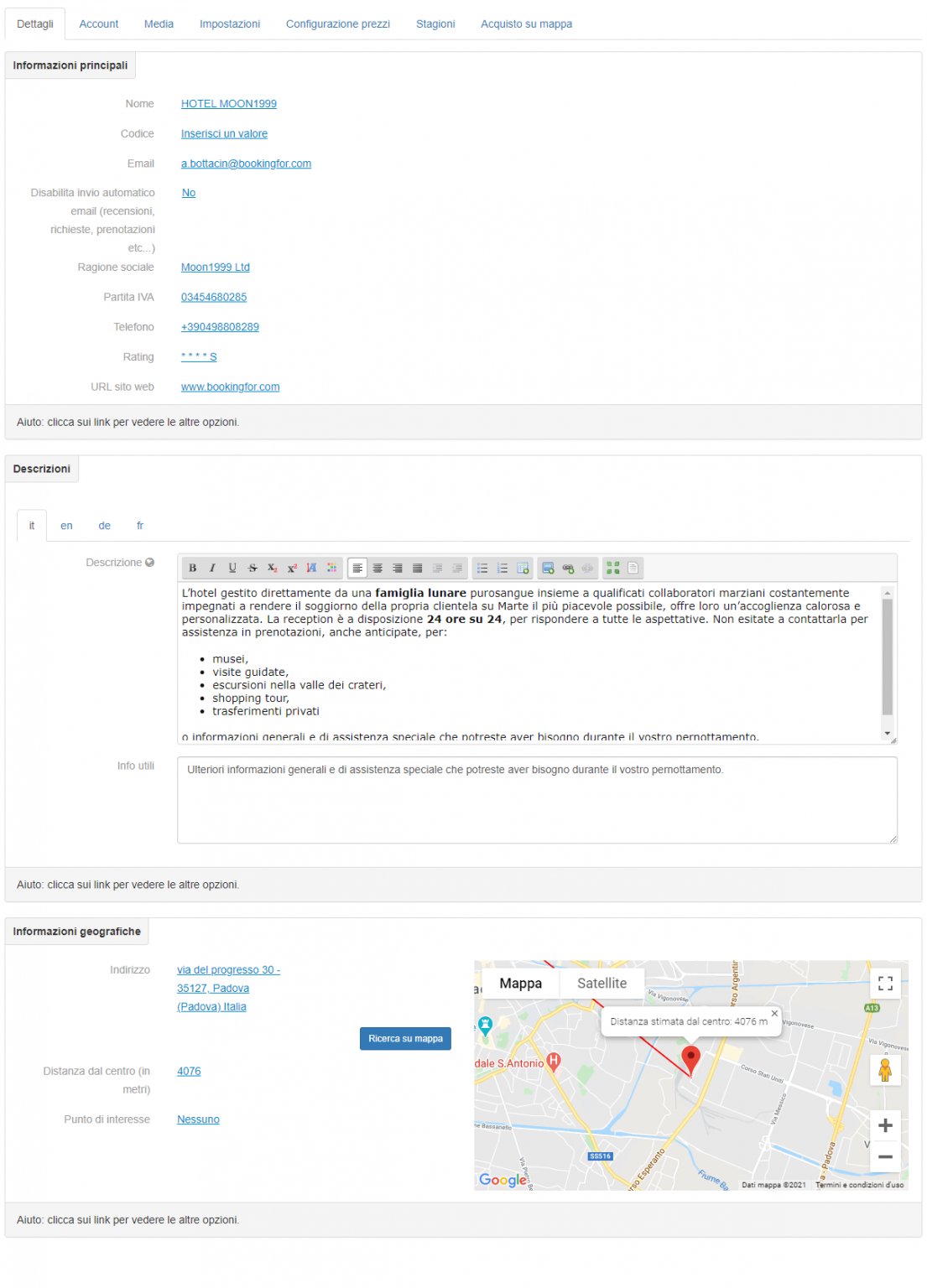
Below is the detail page of a merchant:
This section is divided into three main areas: Main information, Descriptions, Geographic Information.
Each merchant is characterized by a Description and useful information in the language. Depending on the languages that the Administrator Account has made available to the merchants of the subscription, it will be possible to switch from one translation tab to another and to insert textually the desired contents of the specific areas. Text formatting in the Description section is limited with the BBcode.
Each merchant is characterized by a geographical position. Fill in the text fields and locate the merchant on the map by specifying his address. Once the address has been entered, click the Search on map button. The red pointer will be positioned at the point of the address after which it will be possible to move the pointer by clicking on it and then moving it to the most exact position.
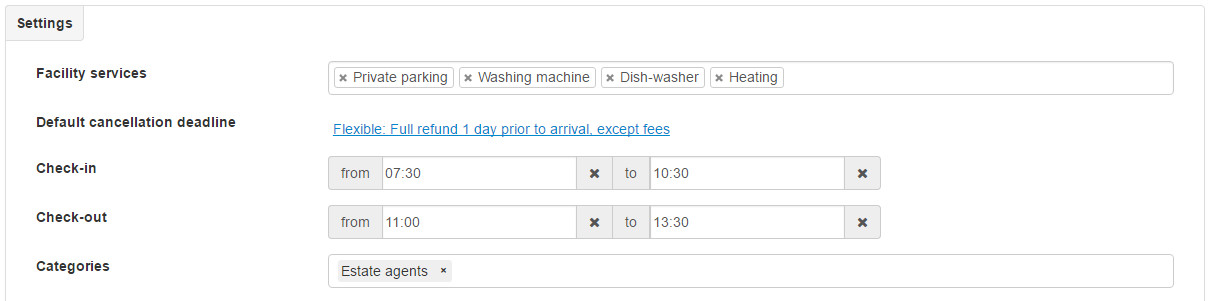
In the “Settings” section it is possible to define the specifications of the merchant: services offered by the merchant, the check-in / check-out times and above all the category to which they belong; on the basis of the category the merchant belongs to, some functions are enabled or not, such as the ability to upload resources, or advertisements for sale.
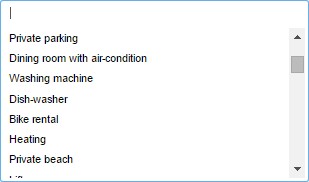
Menu of the services offered by the merchant
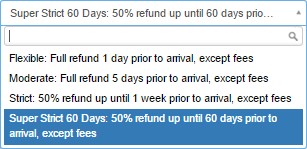
Menu for selecting predefined cancellation terms
Selezionare le fasce orarie di check-in / check-out :
Selezionare le restrizioni del merchant :
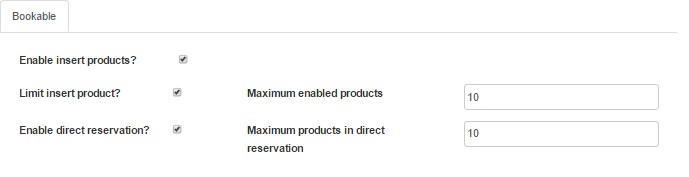
To select “Enable product placement ” to allow you to create resources within the merchant
To select “Restrict product placement “ if you do not want to allow the merchant to add more than a certain number of resources (in example 10)
Selezionare le impostazioni API :
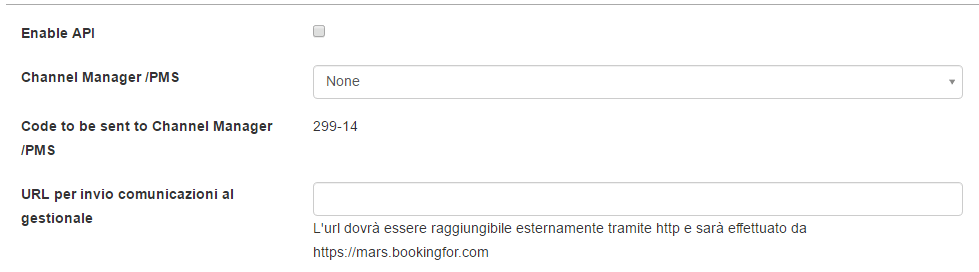
Enable the APIs to connect one of the Bookingfor Certified Channel Managers.
Set the specific Channel Manager of the merchant to start the 2-way data passage (availability, prices and reservations).
Una volta salvato il merchant appena creato accedere alla pagina di personalizzazione avanzata
and select the item you want to customize
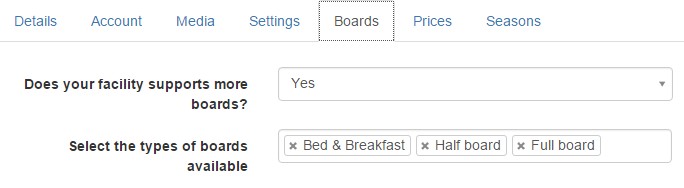
Access the section Treatments and set whether to enable the facility to offer more treatments and if so which ones are supported
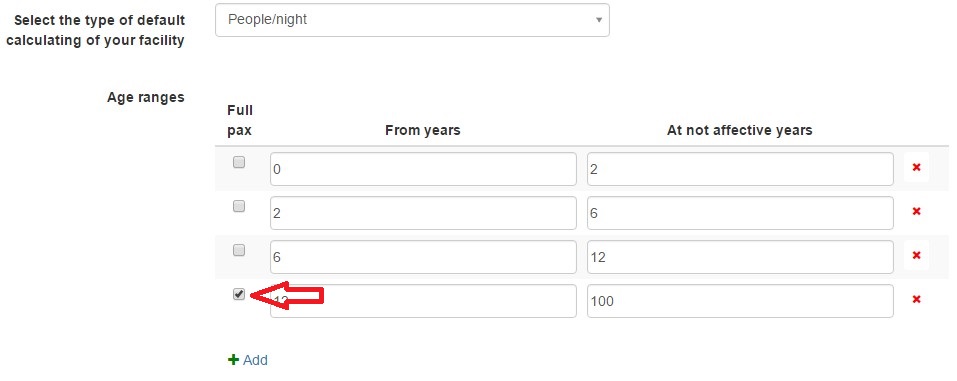
Access the Prices section and select the type of price calculation for the structure, if people / night, resources / night, resources + people / night.
Define the age ranges for which price changes are made and set which age range you intend to consider as “Whole”
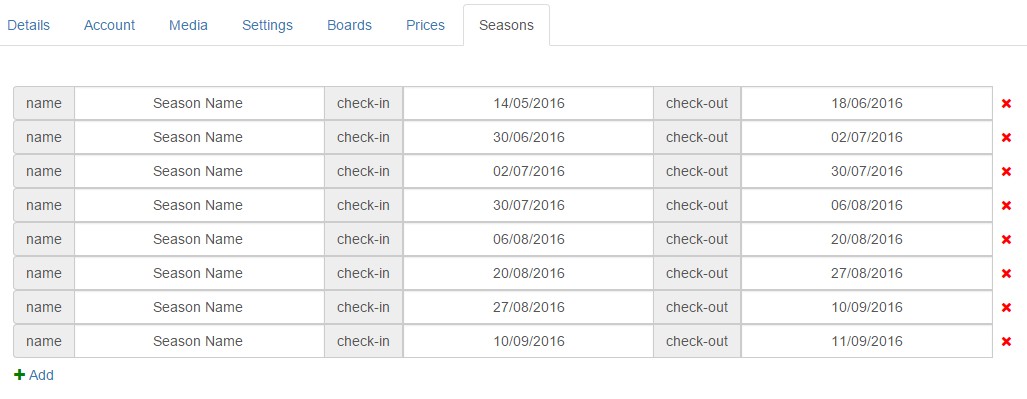
Access the section“Seasons”and define the seasons on the basis of which price changes are made
associating, if desired, the relative name (Pay attention to the concept of Check-in and Check-out: if ad
example a season ends on 04/13/2017 (day of a guest’s check-out), the following season will start on the same day, 04/13/2017 (in fact the new guest will arrive in the afternoon / evening of the same day).